How this guide was written: It was researched with AI assistance from Apple Support, USB-IF and the spec pages of one accessory maker, listed under Sources, and checked against them on September 30, 2026. We did not test any hub or dock. We use Satechi’s products as the worked examples because its spec pages are public; other brands differ. This guide has no affiliate links and does not recommend a brand. See how we research.
Short answer: A USB-C hub is a small adapter that adds a few ports, such as HDMI, USB-A and an SD card slot, through one cable to your laptop. A docking station is a larger desk unit with its own power supply, more ports and usually more display support. Pick a hub for travel and one screen, and a dock for a desk with several accessories or displays.
Key takeaways
- The main difference is power and scale. In Satechi’s lineup the hub has no power input of its own, while its docks ship with a 130 W to 180 W power supply.
- Your computer sets the display limit, not the hub. Apple says a supported hub can split one port into two displays but does not raise the maximum number of displays a Mac supports.
- Some docks add screens through software. Satechi’s DisplayLink docks need DisplayLink software, and its pages say macOS multi-monitor support requires DisplayLink Manager.
- A hub uses some of your charger’s power. Satechi says a 100 W charger connected to its 6-in-1 hub delivers up to about 75 W to the laptop.
USB hub vs docking station: the differences
People search for this as both “USB hub vs docking station” and “USB-C hub vs docking station”. The products we checked all connect over USB-C, so this guide says “USB-C hub”, but shoppers and makers often shorten it to “USB hub”. The two words are not strictly defined, and makers mix names such as “multiport adapter”, “hub” and “dock”. Satechi’s own store sorts its products into “Hubs” and “Docking” categories, so the table uses one product from each. All entries are the maker’s statements, not our testing.
| Hub: 6-in-1 USB-C Slim Multiport Adapter | Docks: Thunderbolt 4 Dock, Triple 4K Display Docking Station | |
|---|---|---|
| Power supply | None of its own; it passes power through from your charger | A power supply is included: 135 W (Thunderbolt 4 Dock) and 130 W (Triple 4K) |
| Charging your laptop | Takes up to 100 W in; the spec lists 75 W maximum out | 96 W (Thunderbolt 4 Dock) or up to 100 W (Triple 4K) to the laptop |
| Displays | One HDMI port, 4K at 60 Hz | Thunderbolt 4 Dock: up to two monitors, 4K at 60 Hz. Triple 4K: three 4K 60 Hz displays, using DisplayLink software |
| Ports | Six: HDMI, USB-C for power, two USB-A, SD and microSD slots | Around a dozen, including Gigabit Ethernet, an SD reader, audio and several USB-A ports |
| Data speed | One USB-A at 10 Gbps, one at 480 Mbps | Thunderbolt 4 Dock: three Thunderbolt 4 ports at up to 40 Gbps and three USB-A 3.2 ports at up to 10 Gbps |
Read that as an example, not a rule: Satechi also sells hubs with Ethernet, and other makers’ products differ.
Displays are the real limit
The number of screens you can use is decided mostly by your computer’s chip and ports. Apple’s support page on MacBook Air displays (published March 10, 2026) says the number of external displays depends on the Mac model and each display’s resolution and refresh rate. It also says using a supported hub or daisy-chaining displays can enable up to two displays over a single Thunderbolt port but does not increase the maximum number of displays you can connect.
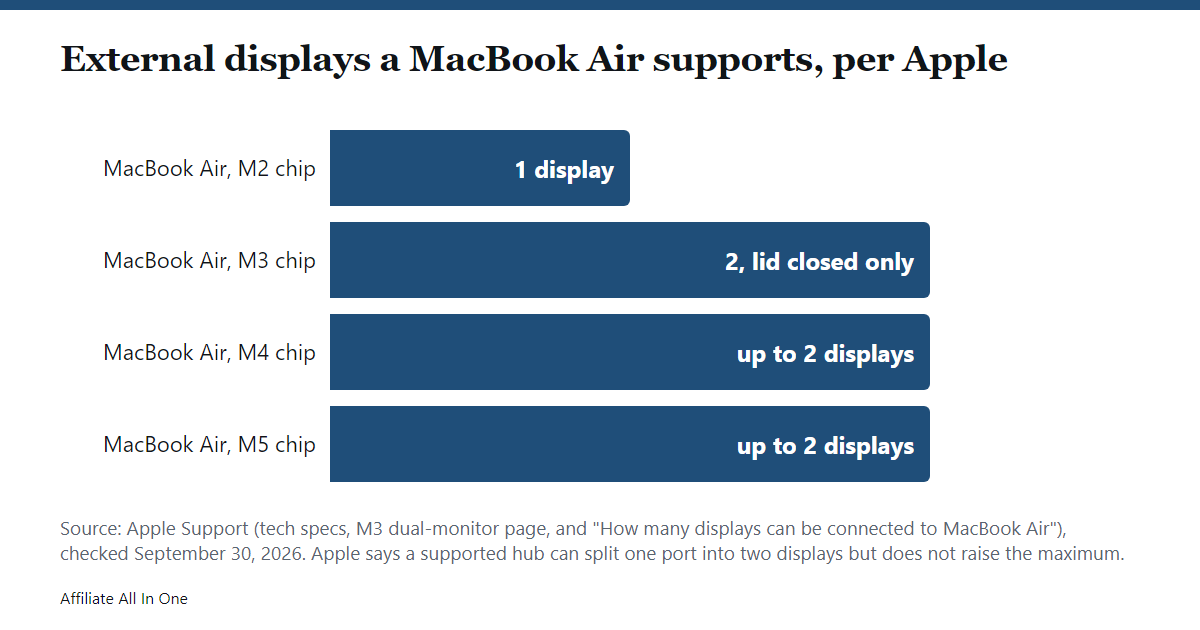
For the MacBook Air, Apple’s pages say:
- M2 chip: one external display, up to 6K at 60 Hz.
- M3 chip: two external displays, but only when the lid is closed.
- M4 and M5 chips: up to two external displays, and closing the lid does not add more.
Satechi’s Thunderbolt 4 Dock page agrees with this pattern: it says base M1 and M2 MacBooks are limited to one display, and the M3 models support two displays only in clamshell mode. It also says the dock itself supports up to two external monitors at a time, at up to 4K and 60 Hz. Windows laptops depend on their own graphics and ports, and we did not research them; check your laptop maker’s specification.
What DisplayLink docks do differently
Satechi’s Thunderbolt 4 Docking Station with DisplayLink lists two HDMI 2.0 ports at 4K and 60 Hz “via DisplayLink software”, and its Triple 4K dock runs two of its HDMI ports and its two DisplayPort outputs through DisplayLink software. Both pages say software must be installed, and that macOS 11 or later needs DisplayLink Manager for multiple monitors. So these docks add screens by a different route than a plain hub. Whether that suits you depends on installing that software, and we did not test how it behaves.
Speed and ports: Thunderbolt, USB4 and USB-C
USB-IF says USB4 is based on the Thunderbolt protocol contributed by Intel, doubles the maximum aggregate bandwidth of USB, and can dynamically share a single high-speed link between data and display traffic. Our reading: that shared link is what lets one cable carry a dock’s ports.
The USB-C shape does not tell you which of these your laptop has. Satechi’s own spec pages show the difference: its 6-in-1 hub asks for a host port that is Thunderbolt 4, Thunderbolt 3, USB4, or USB 3.2 Gen 2 with DisplayPort Alt Mode, and its Thunderbolt 4 Dock asks for Thunderbolt 4, Thunderbolt 3 or USB4 for optimal use. For the power side of USB-C, see our USB-C fast charging guide.
Which do you need?
This is our reading of the sources above, not an official recommendation.
- You travel with a laptop and use one screen or a TV: a hub. One HDMI port at 4K and 60 Hz, plus a few USB and card ports, is what the hub above offers.
- You have a permanent desk with several accessories, wired Ethernet or a big charger: a dock, because it has its own power supply and more ports.
- You want two or more screens from a base-chip MacBook: check Apple’s limit for your model first. A hub cannot raise it, and a DisplayLink dock is the maker’s route, with software to install.
- You mostly need one extra port or a card reader: a small adapter is enough.
What to check before you buy
- Your laptop’s ports. Look for Thunderbolt or USB4, or for DisplayPort support on the USB-C port.
- Your display limit. Use your computer maker’s specification, not the hub’s port count.
- Pass-through wattage. Compare it with your laptop’s charger, and expect some loss, as Satechi states.
- Whether software is required. DisplayLink docks need it.
- Whether a power supply is included. The docks above list one; a hub does not have its own.
Frequently Asked Questions
Can a USB-C hub charge my laptop?
Some can pass charging through. Satechi’s 6-in-1 hub accepts up to 100 W in, but its FAQ says about 15 W is lost to running the hub, and gives up to 75 W to the laptop with a GaN charger and up to 69 W with an Apple charger. Check the pass-through wattage against what your laptop needs.
Can I connect two monitors to a MacBook Air with a hub?
Only if your model supports two. Apple’s pages say the M2 MacBook Air supports one external display, the M3 supports two only with the lid closed, and the M4 and M5 support up to two. Apple says a hub does not increase that maximum.
What is DisplayLink?
It is software that Satechi’s Thunderbolt 4 Docking Station with DisplayLink and its Triple 4K dock require in order to drive their extra displays. Satechi’s pages say macOS 11 or later needs DisplayLink Manager for multi-monitor support.
Is Thunderbolt 4 the same as USB4?
Not by name. USB-IF says USB4 is based on the Thunderbolt protocol Intel contributed. Satechi’s dock lists Thunderbolt 4, Thunderbolt 3 or USB4 host ports as workable, so check both your port and the dock’s requirements.
Do I need a dock for just one monitor?
Not necessarily. A hub with an HDMI port, such as the 4K 60 Hz one above, covers one display if your computer supports it.
Sources
All pages were checked on September 30, 2026.
- Apple Support: How many displays can be connected to MacBook Air (published March 10, 2026)
- Apple Support: MacBook Air (M2, 2022) Tech Specs
- Apple Support: Use dual monitors with your MacBook Air and MacBook Pro with M3 chip (published July 30, 2024)
- USB-IF: USB4
- Satechi: 6-in-1 USB-C Slim Multiport Adapter (specs and FAQ)
- Satechi: Thunderbolt 4 Dock
- Satechi: Thunderbolt 4 Docking Station with DisplayLink
- Satechi: Triple 4K Display Docking Station
Spotted something out of date? See our corrections policy, or browse more Electronics guides.
Sources and last update
This article is written from official and primary sources, such as government agencies, standards bodies and manufacturer documentation, and is checked against them when it is updated. It is based on research, not hands-on testing. See how we research and our editorial policy.
Last updated: October 10, 2026