How this guide was written: It was researched with AI assistance from VESA, Apple, Microsoft, Samsung, Google and Dell support pages, listed under Sources, and checked against them on October 1, 2026. We did not test any cable, adapter, phone or display. This guide has no affiliate links. See how we research.
Short answer: A USB-C port shows a picture only if it supports video, usually through DisplayPort Alt Mode or Thunderbolt. A port that only charges or moves files leaves the screen black, and no cable can fix that. If you get no signal, check in this order: the port, the cable, any adapter or hub, the display, then software.
Key takeaways
- The plug shape does not promise video. VESA’s standard lets a USB-C connector carry DisplayPort signals, but Dell says a port built only for data or power delivery shows no video, and that a computer’s USB 2.0 and SuperSpeed USB ports lack DisplayPort Alt Mode.
- Look for the DisplayPort logo. Dell says ports that support it carry the logo near the connector. If the port is unmarked, it points you to the computer’s manual.
- Extras can be the culprit. Apple says a USB-C adapter used with a Mac must comply with DisplayPort Alt Mode, Thunderbolt 3 or Thunderbolt 4, and Microsoft says to disconnect docks, dongles and adapters while you test.
- A port without video does no harm. Dell says plugging a display into one sends no picture and does not damage the device.
Why a USB-C port may not output video
USB-C describes the connector and the plug, not what travels through them. VESA’s DisplayPort Alt Mode standard, published in 2014, uses USB-C’s “Alternate Mode” feature so that some or all of the connector’s four high-speed lanes carry DisplayPort video, while other pins handle the display’s control channel and plug detection. VESA says that when only some lanes carry video, the rest can carry USB data at the same time, which is how one cable can serve a monitor and USB devices together. In 2020 VESA released version 2.0, which it says works with USB4, and it notes that DisplayPort is also tunneled through Thunderbolt.
The catch is that a maker can fit a USB-C port without building any of this in, and the port will still charge and transfer files. Dell’s support pages describe that case: a display plugged into a port without DisplayPort support gets no video, so the screen stays blank, and the device is not harmed. Some devices show a warning message instead.
How to check whether your port supports video
- Look for the logo. VESA says a DisplayPort logo on a USB-C device marks certified DisplayPort Alt Mode support, and Dell says supporting connectors carry the logo near the port. Dell names a Thunderbolt port as the other kind that can carry video.
- If the port has no marking, read the manual. That is Dell’s advice for unmarked ports.
- Check the maker’s page for your device. This is what the sources we read say:
| Device | What the maker’s page says |
|---|---|
| iPhone | Apple lists the iPhone 15 and later models that can connect to an external display over USB-C. It says the iPhone uses the DisplayPort protocol, at up to 4K and 60 Hz, and that the display mirrors the phone. Our glasses guide carries the model list. |
| Google Pixel | Google says Pixel 8 and later can connect by cable to a display, using a DisplayPort or HDMI to USB-C cable, and mirror the screen. |
| Samsung Galaxy | Samsung says DeX works on select Galaxy phones from the S8 up and tablets from the Tab S4 up, but not on the Galaxy Z Flip. The Tab S10 FE and S9 FE series cannot output over HDMI. A standard USB-C to HDMI adapter can start DeX. |
| Mac | Apple says a Thunderbolt or USB-C adapter must comply with DisplayPort Alt Mode, Thunderbolt 3 or Thunderbolt 4, and that the number of external displays varies by Mac model. |
| Windows PC | Microsoft says whether you can use more than one external monitor depends on the display adapter, and points you to its maker for the number it supports. |
| Other Android phones | The sources we read give no general rule. Check the maker’s specification for video output. |
Cables and adapters
A cable that charges your phone is not automatically a video cable. Apple’s iPhone page shows why the distinction matters: it says the cable supplied with the iPhone supports charging and USB 2 speeds, and that for high-resolution displays you need a cable rated for USB 3.1 or better, for example the one packed with the display or Apple’s Thunderbolt 4 Pro Cable. Our reading: if a plain charging cable gives no picture, try the cable that came with the display or one the maker rates for video.
Adapters add a second check. Apple says a cable or adapter that cannot handle a display’s resolution and refresh rate can leave the screen dark or limit it. VESA says a source with DisplayPort Alt Mode can drive HDMI, DVI or VGA displays through the right adapter, so a USB-C to HDMI adapter can work, as long as the port behind it supports video. Rules can also be narrower than that. For three Dell portable monitors with a USB-C input, Dell says a USB-C to DisplayPort or USB-C to HDMI cable can cause the no-video problem and the cable should be USB-C at both ends. That applies to those monitors’ USB-C inputs, not to every display.
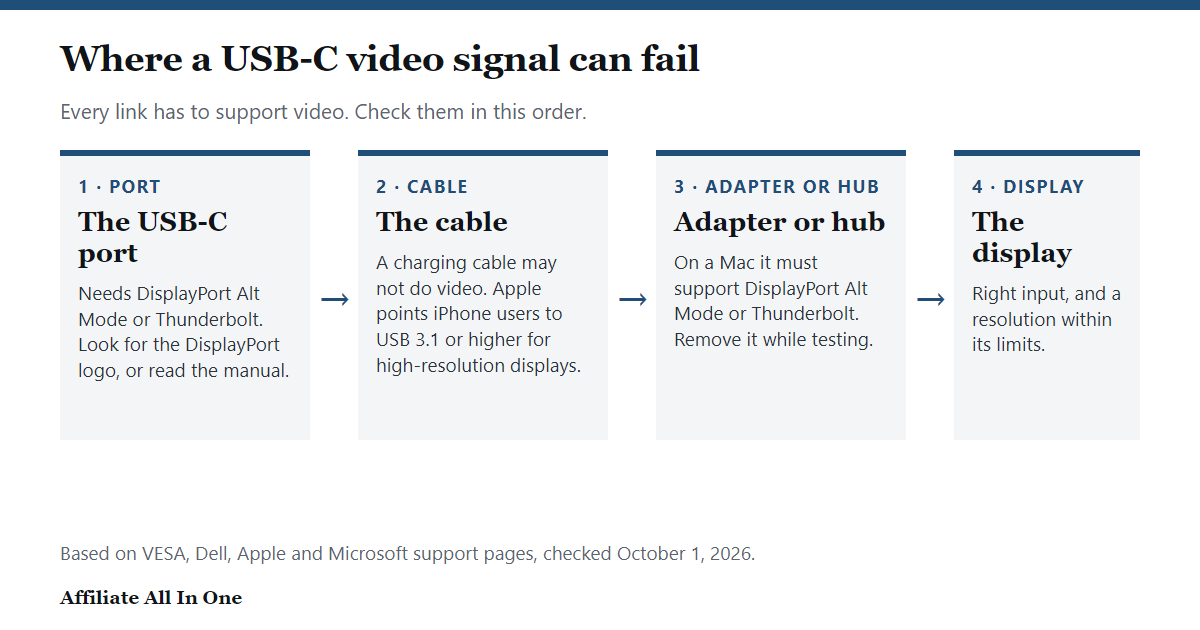
No signal: a checklist in the right order
Change one thing at a time, so you can tell which step fixed it.
- Confirm the port supports video. If it does not, stop here: no cable or adapter changes that.
- Check the connections. Apple says to make sure the display’s power cable and video cable are secure at both ends. Also check the display is on and set to the input you plugged into. That last point is our addition, not from a source.
- Swap parts. Microsoft suggests changing the cable, trying another video port on the computer if there is one, and trying the monitor on a different computer to see which side is at fault.
- Remove the extras. Microsoft says docks, dongles and adapters can cause conflicts, so disconnect them. Apple says to connect the display straight to a port on the Mac if it is on a hub or dock. Once that works, add the hub back; our hub vs dock guide explains why a hub does not raise the number of displays your computer supports.
- Make the computer look again. Apple says to unplug the display and its power and reconnect, sleep and wake the Mac, or hold the Option key in Displays settings and choose Detect Displays, then restart if needed. On Windows, Microsoft says press the Windows key and P and choose Extend, and try Windows key, Ctrl, Shift and B together to reset the graphics driver.
- Check software. Microsoft says to roll back or reinstall the display driver if the problem started after an update. Apple says to install macOS updates, and that a Mac laptop with Apple silicon may ask you to allow the display to connect, and the display stays dark if you do not.
- Check the limits. Apple says a display stays dark if you exceed the number of displays your Mac supports, or set a resolution or refresh rate it cannot handle. Microsoft says that if one monitor works but a second does not, the display adapter may not support more than one, and a splitter only duplicates one signal.
Notes for specific devices
- Samsung DeX: Samsung says DeX restarts if you unplug the HDMI cable, so save your work first. On a Galaxy tablet you must switch to Classic mode to cast to an external display. If the picture looks distorted and the display’s native resolution is not 1080p, Samsung suggests adjusting its screen-fit options or turning off picture enhancements. It also says the display may not support the resolutions DeX needs, so try another one.
- iPhone: Apple says models that cannot output video over USB-C can still mirror using AirPlay.
- Pixel: The wired option needs a Pixel 8 or later. Google’s page also describes casting wirelessly with Google Cast.
Resolution, refresh rate and sound
Resolution and refresh rate are limited by the weakest link. VESA said early DisplayPort Alt Mode products would likely reach 4K at 60 Hz, and Apple says an iPhone outputs up to 4K at 60 Hz over DisplayPort, or over an HDMI adapter that supports HDMI 2.0. For Macs, Apple’s HDMI page says some models with a built-in HDMI port reach 8K at 60 Hz or 4K at 240 Hz, and that adapters are not supported for the 4K 240 Hz mode, so connect displays directly for best results.
No sound over HDMI: Apple says to open Sound settings, choose the Output pane and select the HDMI device. On a Mac mini, it says to disconnect any audio device from the headphone jack, and notes that some Macs with HDMI ports do not support multi-channel audio. We found no audio steps for Windows or Android in the pages we read.
Display glasses, hubs and charging
Display glasses behave like any other screen: the device you plug them into needs a video-capable USB-C port, so the checks above apply, and our glasses guide covers what the makers list. If a hub or dock is in the chain, see the hub vs dock guide. Charging is a separate feature from video. For the power side, read our USB-C fast charging guide.
Frequently Asked Questions
Why is my USB-C to HDMI adapter not working?
First establish whether the USB-C port supports video, because Dell says a port that only handles data or power shows nothing. If it does, check the adapter against your device maker’s rules (Apple, for example, requires DisplayPort Alt Mode or Thunderbolt compliance on a Mac), remove any hub or dock, and try another cable. The checklist above takes you through each step.
Do all USB-C ports support video?
No. Dell says a computer’s USB 2.0 and SuperSpeed USB ports lack DisplayPort Alt Mode, and that a port limited to data or power delivery shows no video. Look for the DisplayPort logo or a Thunderbolt port, or check the manual.
Does every USB-C cable carry video?
We found no source that says so. Apple describes the cable supplied with the iPhone as charging and USB 2 speeds and recommends a cable supporting USB 3.1 or higher for high-resolution displays. Use a cable the maker says supports video, or the one that came with the display.
Does my phone support USB-C video output?
It depends on the model. Apple lists the supported iPhone 15 and later models, Google says Pixel 8 and later, and Samsung lists the phones and tablets compatible with DeX. For other brands, check the maker’s specification, because our sources gave no general rule.
Why does my screen go dark when I use a hub or dock?
Apple says to connect the display directly to the Mac when it is on a hub, and Microsoft says docks and adapters can cause conflicts. Your computer also sets how many displays it can drive, which a hub cannot raise.
Is it harmful to connect a display to a USB-C port without video support?
Dell says doing so sends no video and does not harm the device, and that a warning message might appear.
Why do I have a picture but no sound?
On a Mac, Apple says to select the HDMI device under Output in Sound settings, and, on a Mac mini, to disconnect anything plugged into the headphone jack.
Sources
All pages were checked on October 1, 2026.
- VESA: VESA Brings DisplayPort to New USB Type-C Connector (September 22, 2014)
- VESA: Updated DisplayPort Alt Mode spec for USB4 and USB Type-C (April 29, 2020)
- Dell: Guide to DisplayPort over USB-C (last modified May 1, 2026)
- Dell: Dell Monitor USB-C Port Displays No Video (last modified August 12, 2026)
- Apple Support: If your external display is dark or low resolution (published April 6, 2026)
- Apple Support: Connect to HDMI from your Mac (published September 21, 2026)
- Apple Support: Charge and connect with the USB-C connector on your iPhone (published September 17, 2026)
- Microsoft Support: Troubleshoot external monitor connections in Windows
- Samsung: External display troubleshooting for Samsung DeX
- Samsung: Use the Samsung DeX screen on your Galaxy phone or tablet
- Google Pixel Help: Project your Pixel phone’s screen
Spotted something out of date? See our corrections policy, or browse more Electronics guides.
Sources and last update
This article is written from official and primary sources, such as government agencies, standards bodies and manufacturer documentation, and is checked against them when it is updated. It is based on research, not hands-on testing. See how we research and our editorial policy.
Last updated: October 14, 2026